Running an online store requires more than adding products and accepting payments. Store owners often need special features to improve shopping experiences, manage orders, automate daily tasks, and increase sales. WooCommerce offers many built-in tools, but some businesses require additional functions that are not available in the standard setup. This is where woocommerce plugin development becomes valuable. 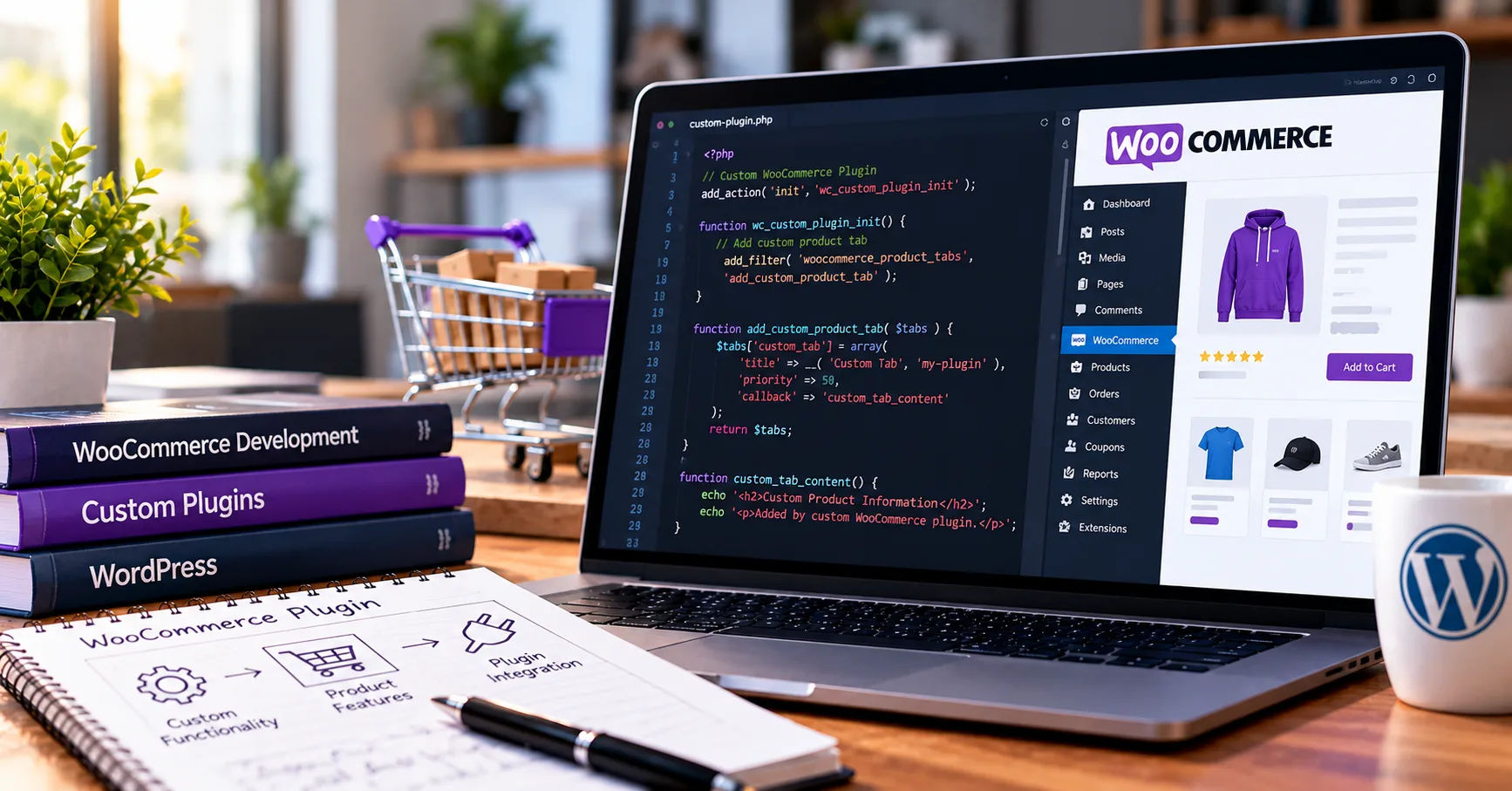 WooCommerce is a popular e-commerce platform that works with WordPress. It allows businesses to create online stores and sell physical products, digital downloads, subscriptions, and services. Although WooCommerce provides many useful features, every business has different needs. A custom plugin can help fill those gaps without changing the platform's core files.
Understanding the development process helps business owners, developers, and website managers make better decisions. From identifying a problem to testing and maintaining the finished plugin, each stage plays an important role in building reliable software.
This comprehensive guide explains how the process works, which tools developers use, what challenges they may face, and how a well-designed plugin can support long-term business growth.
What Is WooCommerce Plugin Development?
WooCommerce plugin development is the process of creating software extensions that add new features or improve existing functions in a WooCommerce-powered online store. These extensions can automate tasks, connect external services, change checkout behavior, or provide additional options for customers and administrators.
A plugin works alongside WordPress and WooCommerce. Instead of modifying the platform's original files, developers use approved extension points, such as hooks, filters, and APIs, to introduce new functionality.
This approach makes a website easier to maintain. When WordPress or WooCommerce receives an update, a properly developed plugin is less likely to cause problems than a solution that directly changes core files.
Why Do Businesses Need Custom Plugins?
Ready-made plugins are useful, but they may not provide every feature a business requires. A custom solution can address specific operational needs and provide greater control over how a store works.
Common reasons for creating a custom plugin include:
-
Adding special product pricing rules.
-
Connecting an online store to inventory management software.
-
Creating custom shipping methods.
-
Integrating payment providers.
-
Automating order notifications.
-
Managing memberships or customer rewards.
-
Generating detailed sales reports.
-
Customizing checkout fields and validation.
-
Synchronizing customer information with a customer relationship management system.
For example, a business selling personalized products might need customers to upload designs and select customization options before purchasing. A custom plugin can provide these features while keeping the shopping process organized.
Step 1: Identify the Business Requirements
The first stage is understanding the problem the plugin must solve. Development should begin with a clear purpose rather than immediately writing code.
Developers communicate with store owners, managers, and other stakeholders to understand their expectations. They examine existing workflows and identify areas where the current website falls short.
Define the Main Objectives
The objectives should explain what the plugin needs to accomplish. These goals should be specific enough to guide development and testing.
For example, a store might want to calculate delivery charges according to product weight, destination, and order value. The requirements should explain which conditions affect the price and what happens when certain information is missing.
Developers should also determine who will use the plugin. Customers may interact with its features on product or checkout pages, while administrators may need settings and reporting tools in the WordPress dashboard.
Prepare a Feature List
A written feature list prevents misunderstandings during development. It should separate essential functions from optional improvements.
Essential features are necessary for the plugin to work correctly. Optional features may be introduced later if time and budget permit.
The planning stage should also identify performance requirements, security expectations, accessibility needs, and compatibility with the store's existing theme and extensions.
Step 2: Research Existing Solutions and Plan the Design
Before building a new extension, developers should investigate whether an existing plugin already solves the problem.
The WordPress plugin directory and the official WooCommerce marketplace are useful places to research available options. Comparing existing solutions can save money and development time.
However, a ready-made plugin may not be suitable if it lacks essential features, creates compatibility problems, or introduces unnecessary complexity.
Create a Technical Plan
Once the requirements are clear, developers decide how the plugin will work internally.
They identify the WordPress hooks, WooCommerce APIs, database requirements, and external services needed for the project. They also determine how information will move between the customer-facing website, administrative dashboard, and any connected systems.
A technical plan should cover error handling, permissions, data storage, and expected behavior when an external service becomes unavailable.
Design the User Experience
A plugin should be easy to use for both customers and administrators. Developers may prepare wireframes or simple interface designs to demonstrate how the features will appear.
Customer-facing controls should be clear, responsive, and accessible. Administrative settings should use understandable labels and explain important options.
Good design reduces confusion and makes the plugin easier to maintain as new features are introduced.
Step 3: Set Up the Development Environment
After planning, developers prepare a safe environment for writing and testing the plugin.
Working directly on a live store is risky because unfinished code can interrupt purchases, expose errors, or damage important data. A local WordPress installation or a staging website provides a safer place to work.
Install the Required Tools
A typical development environment includes:
-
WordPress and WooCommerce.
-
PHP, which powers WordPress server-side functionality.
-
MySQL or MariaDB for database storage.
-
A code editor, such as Visual Studio Code.
-
Git for version control.
-
A local development environment or staging server.
-
Browser developer tools for inspecting page behavior.
Depending on the project, developers may also use Composer, Node.js, automated testing tools, or command-line utilities.
The exact setup depends on the plugin's complexity and the hosting environment.
Create the Plugin Structure
A basic WordPress plugin needs a main PHP file containing a valid plugin header. Developers can organize additional files into folders for administrative pages, public-facing functionality, assets, templates, and tests.
A simple structure might look like this:
my-store-plugin/
├── my-store-plugin.php
├── includes/
│   ├── class-plugin-core.php
│   └── class-order-handler.php
├── admin/
│   └── admin-settings.php
├── public/
│   └── public-functions.php
├── assets/
│   ├── css/
│   └── js/
└── tests/
This is an illustrative structure, not a mandatory format. Small plugins may need fewer files, while larger projects benefit from clearer separation between components.
Organized code makes troubleshooting easier and helps multiple developers collaborate.
Step 4: Write the Plugin Code
Coding is the stage where the planned features become working software. Developers use WordPress and WooCommerce functions to connect the new functionality with the existing store.
PHP is commonly used for server-side logic, while JavaScript and CSS may support interactive features and presentation.
Use WordPress Hooks and Filters
Hooks and filters are important parts of WordPress development.
Actions allow developers to run functions at particular points in the platform's execution. Filters allow them to modify values before those values are used or displayed.
WooCommerce provides many extension points for product pages, cart operations, checkout, order processing, and administrative tasks.
Using these mechanisms helps developers extend existing behavior without unnecessarily replacing core functionality.
Follow WooCommerce Coding Practices
A reliable plugin should follow established WordPress and WooCommerce development conventions.
Developers should use appropriate APIs rather than accessing internal implementation details unnecessarily. They should also check compatibility with the WooCommerce version and features used by the store.
Modern WooCommerce installations may use the Checkout Block and other block-based interfaces. Therefore, developers must determine whether their intended checkout integration needs support for both traditional checkout templates and newer block-based experiences.
Compatibility should be planned early rather than treated as an afterthought.
Build Administrative Settings
Many plugins need a settings page where store owners can configure features without editing code.
For example, a shipping plugin might allow administrators to enter delivery rates, define supported regions, and enable or disable specific shipping methods.
Settings should be validated before they are saved. Sensitive actions must also check user capabilities to ensure that only authorized administrators can make changes.
Clear error messages and sensible default settings make the plugin easier to manage.
Step 5: Integrate WooCommerce Features and External Services
Some plugins operate entirely within WordPress, while others communicate with payment providers, shipping companies, accounting systems, or marketing platforms.
Integration requires careful planning because different services may use different data formats, authentication methods, and operating rules.
Work With Products, Carts, and Orders
WooCommerce provides APIs and data structures for handling products, cart contents, checkout details, and orders.
Developers should use the appropriate interfaces for the task instead of assuming that every product or order can be accessed in the same way.
For example, a plugin that applies a discount may need to evaluate cart contents, check eligibility rules, and recalculate totals when customers change quantities.
A plugin that processes orders must account for payment status, order status, refunds, and other relevant events.
Connect External APIs
An external API allows the plugin to exchange information with another service.
A shipping integration, for instance, might send package dimensions and destination details to a carrier, then receive delivery options and prices.
Developers should handle authentication securely, validate incoming responses, and set reasonable timeouts. They should also account for failed requests, rate limits, and temporary service interruptions.
Caching may improve performance when data does not need to be refreshed for every request. However, sensitive or rapidly changing information should not be cached carelessly.
Step 6: Protect the Plugin From Security Risks
Security is essential because e-commerce websites process customer information, orders, and sometimes payment-related data.
A poorly protected plugin can create risks for the entire store. Security measures should therefore be included throughout development.
Validate and Sanitize Input
Validation checks whether submitted information meets the expected rules. Sanitization helps clean input before it is stored or used.
Developers should validate form submissions, product options, configuration values, and external responses according to their purpose.
When displaying information, they should escape output using the appropriate WordPress functions. This helps prevent malicious content from being interpreted as executable code.
Use Nonces and Permission Checks
WordPress nonces help protect against certain forged requests, but they do not replace authorization checks.
Sensitive operations should verify that the current user has the required capabilities. Developers must also protect database queries, handle file uploads safely, and avoid exposing secret API credentials.
Database operations should use appropriate WordPress APIs and prepared queries where necessary.
For payment integrations, sensitive card information should generally be handled through a suitable payment provider rather than stored directly by a custom plugin.
Step 7: Test the Plugin Thoroughly
Testing confirms whether the plugin works as intended and helps identify problems before release.
A feature that works on one test page may still fail during checkout, conflict with another extension, or behave incorrectly under unusual conditions.
Perform Functional Testing
Developers test every major feature against the original requirements.
For example, a discount plugin should be tested with eligible and ineligible products, different cart values, expired offers, and multiple discount conditions.
Order-related features should be checked across relevant payment and order statuses.
Testing should include normal usage, invalid input, empty values, unexpected responses, and failure scenarios.
Check Compatibility and Performance
The plugin should be tested with supported versions of WordPress, WooCommerce, PHP, and relevant third-party extensions.
If it changes checkout behavior, developers should test the actual checkout flow and verify that customers can complete purchases successfully.
Performance testing helps identify slow database queries, excessive API calls, and unnecessary loading of scripts or styles.
Automated tests can help detect regressions when developers make future changes. Depending on the project, useful methods include unit tests, integration tests, and end-to-end tests.
Step 8: Review, Package, and Deploy the Plugin
After testing, developers prepare the plugin for installation on the intended website.
They review the code, remove temporary debugging statements, verify file organization, and ensure that documentation and configuration instructions are included.
Version control helps track changes and makes it easier to identify when a problem was introduced.
Prepare the Release
The release package should contain the files required for the plugin to operate, without unnecessary development materials or confidential information.
Developers should confirm that the plugin activates correctly and that any required setup steps are documented.
If the plugin introduces database changes, those changes should be handled carefully. Deactivation should not automatically delete valuable customer or store data unless that behavior is explicitly intended and clearly explained.
Deploy to the Live Store
Before deployment, the store owner should create a verified backup of the website and database.
The plugin can then be installed on the live website using the appropriate WordPress administration tools or deployment workflow.
After installation, developers should repeat critical checks, including product browsing, cart updates, checkout, order creation, and any connected integrations.
Monitoring logs and site behavior after release helps identify issues that did not appear in staging.
Step 9: Document and Maintain the Plugin
Development does not end when the plugin is installed. WordPress, WooCommerce, PHP, and external services continue to evolve.
Ongoing maintenance keeps the plugin secure, compatible, and useful.
Write Clear Documentation
Documentation should explain installation, configuration, feature usage, supported software versions, known limitations, and troubleshooting steps.
For a commercial plugin, developers may also provide frequently asked questions and support instructions.
Good documentation reduces support requests and helps future developers understand how the software works.
Provide Updates and Fixes
Maintenance may include security patches, bug fixes, performance improvements, and compatibility updates.
Developers should review relevant platform changes and test updates before deploying them. They should also maintain a clear version history so users understand what each release changes.
When a problem occurs, a structured support process can help developers reproduce the issue, identify its cause, and release an appropriate fix.
Regular maintenance is especially important for plugins involved in checkout, payment processing, order management, or customer data.
Common Challenges in WooCommerce Plugin Development
Although the development process follows a clear structure, several challenges can affect the final result.
Compatibility Problems
Themes and other plugins may change the same parts of a website. These overlapping behaviors can cause unexpected results.
Developers can reduce this risk through isolated testing, proper use of extension points, and clear documentation of supported environments.
Changing Platform Requirements
WooCommerce introduces new features and may change older interfaces over time. A plugin that works with one version may require adjustments to remain compatible with another.
Following official documentation and testing against supported versions helps prevent avoidable failures.
Performance Issues
Complex calculations, repeated external requests, and inefficient database operations can slow down a store.
Developers should measure performance rather than relying on assumptions. Efficient queries, suitable caching, and loading assets only when needed can improve responsiveness.
Security and Data Protection
Plugins that handle personal information or business records must protect that data throughout its lifecycle.
Access controls, secure authentication, careful logging, and appropriate data-retention practices help reduce risk. Developers should also consider applicable privacy and consumer-protection requirements.
Budget and Time Constraints
The cost and duration of development depend on feature complexity, integrations, testing requirements, and ongoing support expectations.
A small settings extension may require much less work than a plugin involving subscriptions, external inventory systems, or complicated checkout rules.
Defining a minimum viable feature set helps businesses control costs while leaving room for future improvements.
Best Practices for a Successful Plugin
Following proven development practices can improve quality and reduce future maintenance costs.
-
Start with clear requirements. Define the problem, expected behavior, and success criteria before coding.
-
Use official APIs. Prefer documented WordPress and WooCommerce extension points.
-
Keep the code organized. Separate unrelated responsibilities into manageable components.
-
Prioritize security. Validate inputs, escape outputs, and check user permissions.
-
Test realistic scenarios. Include checkout, order processing, errors, and compatibility checks.
-
Use version control. Track changes and maintain a reliable development history.
-
Document important decisions. Explain setup steps, limitations, and maintenance requirements.
-
Plan for future updates. Avoid unnecessary dependencies and test platform changes before deployment.
-
Monitor the live store. Review errors and investigate problems quickly.
-
Collect user feedback. Improve the plugin based on actual business needs and customer experiences.
These practices make a plugin easier to operate and help businesses avoid costly disruptions.
Conclusion
The WooCommerce plugin development process involves several connected stages, beginning with business research and requirements gathering and continuing through planning, coding, integration, security, testing, deployment, and maintenance. Every stage contributes to the reliability and usefulness of the finished product.
A successful plugin does more than add a new button or function to an online store. It solves a genuine problem, fits naturally into existing workflows, protects important information, and performs consistently under real shopping conditions.
Businesses should begin by identifying their most important needs and deciding whether an existing extension can meet them. If a custom solution is necessary, a clear feature list and technical plan can prevent misunderstandings and unnecessary expenses.
Choosing experienced developers, following established WordPress practices, and testing the plugin thoroughly can improve the chances of a successful launch. Store owners should also budget for future updates because software compatibility, security requirements, and business needs change over time.
Ultimately, woocommerce plugin development provides a flexible way to adapt an online store to specific business goals. When the process is managed carefully, a custom plugin can improve customer experiences, reduce repetitive work, strengthen integrations, and support long-term growth. The best results come from combining thoughtful planning, clean code, strong security, realistic testing, and ongoing maintenance.