A gaming computer needs a reliable cooling system to perform well, especially when running demanding games for several hours. Modern processors and graphics cards produce considerable heat during gaming, and that heat must escape from the computer case to prevent temperatures from rising too high. Good airflow helps maintain stable performance, protects important components, and makes the overall gaming experience more enjoyable. 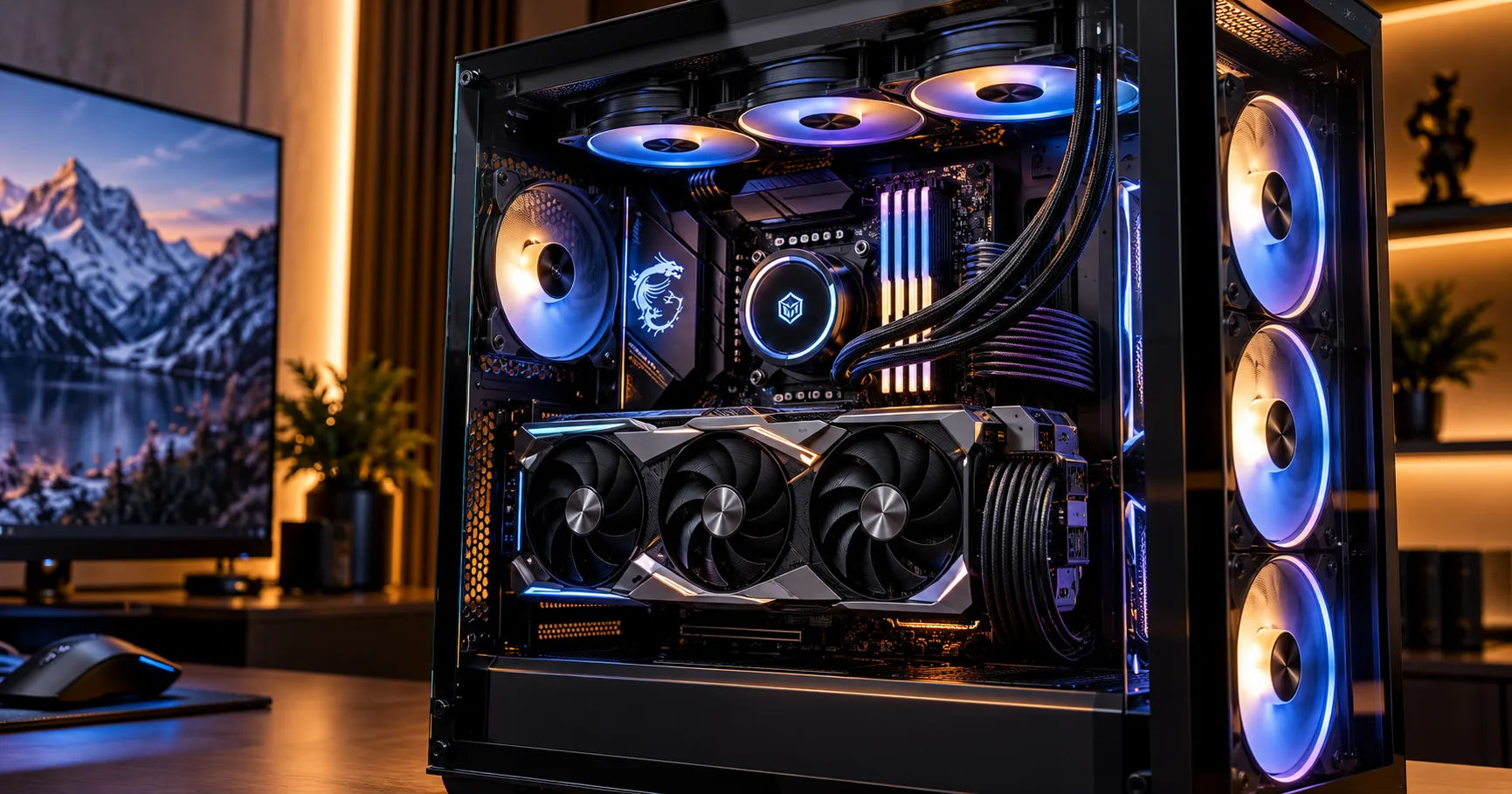 For anyone buying or building a gaming pc uae, airflow deserves special attention because the local climate can make cooling more challenging. High outdoor temperatures, warm indoor environments, and long gaming sessions can place additional demands on a computer's cooling system. However, not every gaming PC needs extra fans or expensive cooling equipment. The right solution depends on the hardware, case design, room temperature, and the type of games being played.
Understanding how airflow works makes it easier to choose the right components and avoid unnecessary spending. With a few practical improvements, gamers can build a system that stays cool, runs quietly, and delivers consistent performance throughout the year.
Why Airflow Matters in a Gaming PC
Airflow is the movement of air through a computer case. It brings cooler air into the system and pushes warmer air out. This continuous movement prevents heat from collecting around components such as the CPU, GPU, motherboard, and power supply.
When a computer runs a demanding game, its processor and graphics card perform thousands of calculations every second. This activity produces heat, which must be transferred away from sensitive electronic components.
A good cooling system manages that heat effectively. Without sufficient airflow, warm air can remain trapped inside the case, making it harder for the CPU and GPU coolers to do their jobs.
Preventing High Component Temperatures
Processors and graphics cards are designed to operate within specific temperature limits. When temperatures become excessive, the hardware may reduce its operating speed to control heat. This process is known as thermal throttling.
Thermal throttling can lower frame rates, create inconsistent performance, and make games feel less responsive. Players might notice sudden drops in performance during intense battles or graphically demanding scenes.
A well-ventilated gaming computer helps reduce the likelihood of these problems. Although airflow cannot eliminate heat, it can help the cooling system manage it more effectively.
Supporting Consistent Gaming Performance
Consistent performance is important for competitive and casual gamers alike. Games with large environments, detailed graphics, and many moving objects can place a heavy load on the GPU and CPU.
If heat builds up inside the case, cooling fans may spin faster to compensate. This can increase noise without completely solving the underlying airflow problem.
A balanced arrangement of intake and exhaust fans helps move heat away from critical components. As a result, the computer may maintain more consistent performance during extended sessions.
Helping Components Last Longer
Excessive heat can place additional stress on electronic components. Repeated operation at unnecessarily high temperatures may contribute to long-term wear, although component lifespan also depends on voltage, manufacturing quality, dust, and other factors.
Proper airflow supports a healthier operating environment. It also helps prevent nearby components from being exposed to excessive heat from the graphics card or processor.
Good cooling does not guarantee a particular lifespan, but it is a sensible part of maintaining a reliable gaming system.
Does the UAE Climate Make Extra Airflow Necessary?
The UAE experiences hot weather for much of the year. In many homes, air conditioning keeps indoor temperatures comfortable, but conditions can vary depending on the room, building, and cooling arrangements.
These environmental factors can influence how effectively a gaming computer removes heat.
Understanding Ambient Temperature
Ambient temperature refers to the temperature of the air surrounding your computer. The cooler the incoming air, the easier it generally is for a cooling system to keep components within their preferred operating ranges.
For example, a computer drawing air from a room maintained at 22°C has a different starting point from one operating in a room at 32°C.
The CPU and GPU will still produce their own heat, but the warmer starting temperature leaves less room for the cooling system to dissipate that heat before components reach their temperature limits.
This is why a gaming PC used in a warm room may benefit more from improved airflow than an otherwise identical system in a cooler environment.
The Role of Air Conditioning
Air conditioning can make a significant difference to gaming conditions in the UAE. A comfortably cooled room helps provide the computer with cooler intake air.
However, a cool room does not automatically mean the PC case has good airflow. A restrictive front panel, blocked vents, or poorly arranged fans can still prevent efficient heat removal.
Ideally, keep the computer in a room with stable indoor temperatures and position it where its intake and exhaust vents can operate freely.
Seasonal Changes and Indoor Conditions
Summer temperatures can place greater demands on cooling systems, particularly in rooms that receive direct sunlight or have limited air conditioning.
Even during cooler months, a powerful computer can generate considerable heat during demanding workloads. The need for additional fans therefore depends on the complete environment rather than the season alone.
For a gaming pc uae, checking temperatures during the hottest part of the day can reveal whether the existing cooling arrangement is sufficient.
How to Know Whether Your Gaming PC Needs Extra Airflow
Before purchasing additional fans, determine whether your computer actually has a cooling problem. More fans do not always produce better results, particularly when the case already has an effective airflow arrangement.
Monitor CPU and GPU Temperatures
The first step is to check temperatures while playing your usual games. Hardware monitoring software can show CPU temperature, GPU temperature, fan speed, and sometimes power consumption.
Record temperatures after the computer has been running a demanding game for approximately 20 to 30 minutes. This gives the system time to warm up under load.
Compare the readings with the specifications and temperature guidance for your particular processor and graphics card. Safe operating limits vary by model, so one universal temperature threshold should not be applied to every computer.
If temperatures remain within the manufacturer's recommended limits and performance is stable, additional fans may not be necessary.
Look for Performance Drops
A computer that becomes noticeably slower after extended gaming may have a thermal problem. You might experience frame-rate drops, stuttering, or reduced clock speeds as the system heats up.
These symptoms can also result from software issues, memory limitations, driver problems, or other hardware bottlenecks. Temperature monitoring helps determine whether overheating is a likely cause.
If the GPU or CPU repeatedly reaches its thermal limit, inspect the cooling system before investing in upgrades.
Listen to Fan Noise
Fans naturally become louder when a computer is under heavy load. However, unusually loud or constantly high fan speeds may indicate that the cooling system is working harder than necessary.
Dust accumulation, restricted vents, an aggressive fan curve, or an undersized cooler can all contribute to excessive noise.
If cleaning the computer and improving ventilation does not solve the problem, adding or repositioning case fans may help.
Check for Hot Air Trapped Inside the Case
A case with limited ventilation may retain warm air around the graphics card and processor. This is particularly common in compact cases or designs with restrictive front panels.
Inspect the front, top, and rear ventilation areas. Make sure cables, objects, and dust filters are not obstructing the airflow path.
If the case has only one exhaust fan and limited intake ventilation, adding a suitable intake fan could improve cooling.
How Many Fans Does a Gaming PC Need?
There is no single fan count that works for every computer. The ideal arrangement depends on case size, component power consumption, fan placement, and the resistance created by panels and filters.
Nevertheless, several common configurations provide a useful starting point.
One or Two Case Fans
A basic gaming PC with moderate power consumption may operate adequately with two well-positioned fans, especially when the case has an open design.
One fan can draw cool air into the front of the case, while another pushes warm air out through the rear.
This arrangement creates a straightforward path for air to move across the motherboard and toward the exhaust.
However, two fans may be insufficient for a powerful graphics card in a compact or restrictive case. Temperature testing should guide the decision.
Three Case Fans
Three fans can provide a practical balance for many mid-range gaming systems.
A common configuration uses two front intake fans and one rear exhaust fan. The front fans bring cooler air toward the GPU and CPU, while the rear fan helps remove heated air.
This setup is often a reasonable starting point for a mainstream gaming pc uae, although the case's design and included fans matter more than the number alone.
Four or More Case Fans
High-performance gaming systems may benefit from four or more case fans, particularly when they contain a powerful GPU, a high-wattage CPU, or several heat-producing components.
For example, three intake fans and one rear exhaust fan can provide substantial fresh air while encouraging warm air to leave the case.
Some builds also use top-mounted exhaust fans. These can help remove rising warm air, although their effectiveness depends on the case layout and the placement of the CPU cooler or radiator.
Adding fans beyond this point may provide diminishing returns. A sensible arrangement with quality fans is usually more useful than filling every available mounting position.
Choosing the Right Airflow Configuration
Fan placement is just as important as fan quantity. A well-planned arrangement creates a clear route for fresh air to enter and warm air to escape.
Intake Fans
Intake fans usually sit at the front or bottom of a computer case. Their purpose is to bring outside air toward the internal components.
Front intake fans are particularly useful because they can supply fresh air directly to the graphics card and CPU cooling area.
If the case has a dust filter, check it regularly. A heavily clogged filter can restrict airflow and reduce cooling efficiency.
Exhaust Fans
Exhaust fans commonly sit at the rear or top of the case. They help remove the warm air produced by the CPU, GPU, and other components.
A rear exhaust fan is a useful feature in many gaming systems because it helps carry heat away from the CPU cooler and motherboard area.
Top exhaust fans may help in some builds, but they should not be added automatically. Poor placement can sometimes pull fresh intake air out of the case before it reaches the components that need it.
Positive and Negative Air Pressure
Air pressure inside a computer case depends on the balance between intake and exhaust airflow.
Positive pressure occurs when intake airflow exceeds exhaust airflow. When combined with filtered intakes, this arrangement can reduce the amount of dust entering through unfiltered gaps.
Negative pressure occurs when exhaust airflow exceeds intake airflow. This can remove warm air effectively in some configurations, but it may also draw more dust through openings that lack filters.
Neither arrangement is automatically best for every case. A slightly positive-pressure setup with clean filters is a useful target for many home gaming systems.
Does Your CPU Cooler Affect Case Airflow?
Case fans are only one part of a computer's cooling system. The CPU cooler also affects how heat moves through the case.
Air CPU Coolers
An air cooler uses a heatsink and fan to transfer heat away from the processor. Many tower coolers direct air through the heatsink toward the rear exhaust fan.
This arrangement works well when the case provides a clear front-to-back airflow path.
Make sure the CPU cooler is installed in the correct orientation and that its fan is not fighting against the case's airflow direction.
Liquid CPU Coolers
Liquid cooling systems use a pump, coolant, and radiator to move heat away from the processor. The radiator's fans then release that heat into the surrounding air.
A front-mounted radiator used as an intake can supply cooler air to the radiator, but it may introduce some CPU heat into the case.
A top-mounted radiator used as an exhaust can remove CPU heat more directly from the system, although the best choice depends on the case and radiator design.
Liquid cooling does not eliminate the need for case airflow. The GPU, motherboard, storage devices, and other components still need adequate ventilation.
Best Ways to Improve Airflow Without Spending Too Much
Extra airflow does not always require buying expensive equipment. A few simple changes can improve cooling without significantly increasing your budget.
Clean Dust Filters and Fans
Dust can collect on filters, fan blades, heatsinks, and ventilation openings. This buildup reduces airflow and may cause fans to work harder.
Turn off the computer, switch off the power supply, and disconnect the power cable before cleaning. Use appropriate compressed air or a suitable electronics-cleaning method, and prevent fans from spinning uncontrollably while cleaning them.
Avoid using liquids inside the computer and follow the manufacturer's maintenance recommendations.
Improve Cable Management
Loose cables can obstruct airflow in some cases, especially smaller builds with limited space.
Route cables behind the motherboard tray where possible and keep them away from fan blades and major ventilation paths.
Modern cases often provide cable channels and tie-down points to make this easier.
Position the Computer Correctly
Avoid placing the computer inside a closed cabinet or tightly against a wall. These locations can restrict ventilation and cause the system to recycle its own warm exhaust air.
Leave enough space around the case's intake and exhaust areas. If the case draws air from the bottom, ensure that its feet provide adequate clearance.
Keeping the computer away from direct sunlight can also help prevent unnecessary heat buildup.
Choose Quality Fans
If additional cooling is necessary, choose fans that match the case's size and intended use.
Fans designed for high airflow can work well in open areas, while models with stronger static pressure may be better suited to restrictive panels, dust filters, or radiators.
Check noise ratings, speed control, connector compatibility, and mounting dimensions before buying.
Common Airflow Mistakes to Avoid
Even a computer with several fans can run hot if its cooling arrangement is poorly planned.
Installing Fans in the Wrong Direction
Every case fan has a direction of airflow. Installing intake fans as exhaust fans, or vice versa, can create an inefficient arrangement.
Look for the airflow arrows printed on the fan frame or consult its manual before installation.
Adding Too Many Fans
More fans can increase noise, dust movement, and power consumption without delivering a meaningful temperature improvement.
If your current system maintains safe temperatures and stable performance, spending money on additional fans may offer little benefit.
Ignoring the Graphics Card
The graphics card often produces a large share of the heat during gaming. A case arrangement that cools the CPU well may still leave the GPU struggling if fresh air cannot reach its fans.
Prioritize clear intake airflow near the graphics card and check its temperature during demanding games.
Buying a Case for Appearance Alone
A visually attractive case may have a glass front panel or limited ventilation. Such designs can look impressive but restrict the amount of air entering the system.
When choosing a case, examine its ventilation openings, fan support, dust filters, and compatibility with your graphics card and CPU cooler.
A well-ventilated case can be a better long-term investment than an attractive but restrictive design.
How to Test Whether an Airflow Upgrade Works
After changing your cooling arrangement, test the computer under conditions similar to your normal gaming routine.
First, record CPU and GPU temperatures during a demanding game before making changes. Note fan speeds, room temperature, performance, and noise levels if possible.
Next, clean the case or install the additional fans. Repeat the same game or workload under similar room conditions and compare the results.
A successful upgrade may lower temperatures, reduce fan noise, or help maintain more consistent clock speeds. The improvement might be modest, particularly if the original cooling system was already effective.
Avoid judging the results using a single temperature reading. Compare sustained temperatures over several minutes, and check whether the hardware remains within its recommended operating limits.
If temperatures remain high after airflow improvements, investigate other possibilities, including a poorly mounted CPU cooler, dried thermal paste, an incorrect fan curve, or an unusually demanding workload.
Conclusion
Extra airflow can be valuable for a gaming computer, but it is not necessary for every build. The most important factors are the case design, processor and graphics card power consumption, room temperature, existing fans, and the computer's performance under sustained gaming loads.
For many gamers, a configuration with two or three well-positioned fans provides a solid starting point. More powerful systems may benefit from additional intake and exhaust fans, while compact or restrictive cases may require a different approach. The goal is to create a clear path for fresh air to reach important components and for warm air to leave the case efficiently.
The UAE's hot climate makes room temperature particularly important. Using air conditioning, keeping the computer away from enclosed spaces, and cleaning dust filters regularly can help improve cooling without requiring expensive upgrades. Monitoring temperatures during actual gameplay is the most reliable way to determine whether extra airflow is needed.
When choosing a gaming pc uae, consider ventilation alongside the processor, graphics card, memory, and storage. A good case and balanced cooling arrangement can support stable performance, reduce unnecessary fan noise, and make maintenance easier. Rather than buying as many fans as possible, start by understanding your system's temperatures, improving its existing airflow, and adding cooling only when testing shows that it would be beneficial.
A carefully planned cooling setup helps you get more consistent performance from your hardware and enjoy longer gaming sessions with greater confidence.